Bring your own keys
Connect Your Company AI API Keys Once
Give employees controlled access to company AI providers without manually distributing credentials or configuring every user separately.
- One key per provider, used by the whole workspace
- Employees work through the workspace, not the key
- Provider billing stays where it is today
The problem
API keys get shared the way passwords used to
Companies that already pay for provider APIs usually have no clean way to give a team access to them. The key ends up somewhere it should not be.
Keys travel through chat and email
A developer pastes the key into a message so a colleague can try something. From there it is copied into scripts, notes and personal tools.
Everyone configures their own client
Each person wires the key into a different desktop app or browser extension, and nobody knows which tools are holding company credentials.
Revoking a key breaks everyone
Because one key is spread across many places, rotating it after someone leaves means finding and fixing every one of them.
No usage attribution
The provider dashboard shows one key consuming tokens. It cannot tell you which employee, project or client that work belonged to.
The solution
Company keys stay in the workspace, people get access to models
Intrascope holds the provider credential at the workspace level and gives employees model access instead of credentials.
Company-controlled provider accounts
The keys belong to the company, are added by an admin and stay under admin control when people join or leave.
Employees never handle the key
Team members select a model in the chat. They do not see, copy or configure the credential behind it.
One configuration for everyone
Connect a provider once and it is available to the whole workspace, instead of being set up separately on every person's machine.
Provider billing stays direct
Usage runs through your own provider account, so invoicing, rate limits and provider-side controls remain yours.
Several providers in one workspace
Add keys for the providers you already have and let your team reach all of them from a single interface.
BYOK and managed usage together
Run your own keys for the providers you have contracts with, and use Intrascope-managed usage for the ones you do not.
Connect your first provider on a call
We will walk through adding a company key, enabling models and inviting your first users, using your actual providers.
How it works
Four steps from one key to a working team
The whole flow is an admin task. Nothing needs to be installed or configured by the people who will use it.
- 01
An admin adds a provider key
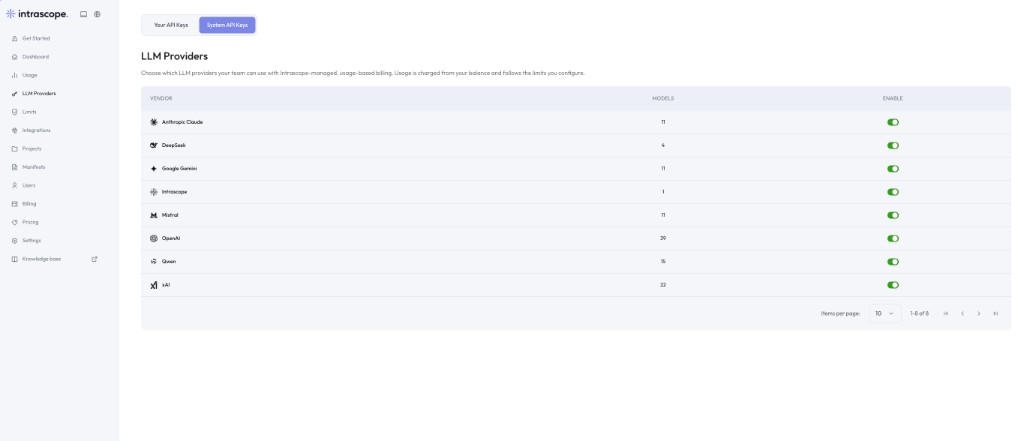
Open LLM Providers, choose the vendor and add the company API key under Your API Keys.
- 02
Intrascope stores it at workspace level
The credential is held by the workspace and used on behalf of approved users, rather than being distributed to them.
- 03
The admin selects available models
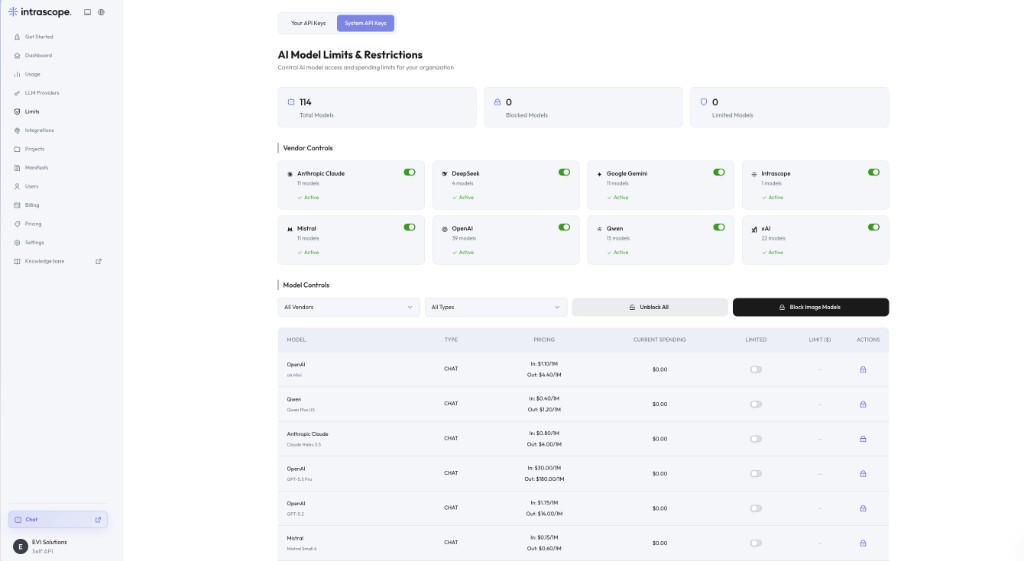
In Limits, enable the models this key should serve and set spending caps where you want a ceiling.
- 04
Employees use approved models
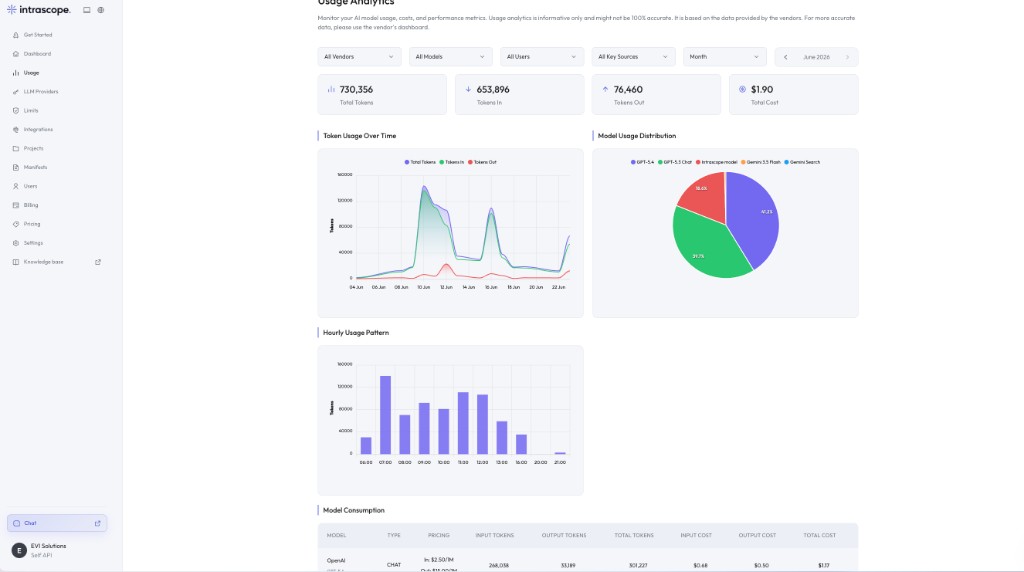
Your team opens the chat, picks from the enabled models and works. Usage shows up per user and per project.
Inside the product
Provider setup, model control, usage attribution
Three screens cover the entire lifecycle of a company API key inside the workspace.
Business outcome
What changes when keys stop circulating
Credentials stop spreading
One key lives in one place instead of in chat threads, local config files and personal tools.
Offboarding is a workspace action
Removing a user removes their access. The provider key does not need to be rotated because someone changed jobs.
Usage becomes attributable
The provider sees one key, but your workspace shows which user and project generated the consumption.
Faster provider onboarding
Adding a new provider is one admin action, not a rollout across every employee's setup.
Existing contracts keep working
If you already negotiated provider pricing or credits, you keep using them.
A path away from personal accounts
People who were using personal subscriptions get better model access through company credentials instead.
Before and after
Sharing a key manually, or connecting it once
Both approaches use the same provider account. Only one of them can tell you who did what.
| Topic | Keys shared manually | Keys connected in Intrascope |
|---|---|---|
| Where the key lives | In messages, notes and each person's tool of choice. | In the workspace, added and controlled by an admin. |
| Employee setup | Everyone configures their own client. | Nothing to configure. They open the chat and pick a model. |
| Removing access | Rotate the key and repair every integration using it. | Remove the user from the workspace. |
| Model control | Whatever the key can reach, everyone can reach. | Only the models an admin enabled, with spending caps. |
| Usage reporting | One anonymous total in the provider dashboard. | Tokens and cost per user, project, model and key source. |
| Multiple providers | A separate distribution problem for each one. | Added once each, available together in one interface. |
Where the key lives
Keys shared manually
In messages, notes and each person's tool of choice.
Keys connected in Intrascope
In the workspace, added and controlled by an admin.
Employee setup
Keys shared manually
Everyone configures their own client.
Keys connected in Intrascope
Nothing to configure. They open the chat and pick a model.
Removing access
Keys shared manually
Rotate the key and repair every integration using it.
Keys connected in Intrascope
Remove the user from the workspace.
Model control
Keys shared manually
Whatever the key can reach, everyone can reach.
Keys connected in Intrascope
Only the models an admin enabled, with spending caps.
Usage reporting
Keys shared manually
One anonymous total in the provider dashboard.
Keys connected in Intrascope
Tokens and cost per user, project, model and key source.
Multiple providers
Keys shared manually
A separate distribution problem for each one.
Keys connected in Intrascope
Added once each, available together in one interface.
How teams use it
Who reaches for BYOK first
Bring your own keys suits companies that already have provider relationships and want to extend them to the whole team.
Engineering already has the accounts
The API accounts exist for product work. Connecting them to a workspace lets non-technical colleagues use the same providers safely.
Finance wants billing to stay put
Provider invoices continue exactly as before, while access and reporting move into the workspace.
A team with provider credits
Existing credits or negotiated rates keep applying, because usage still runs through your own account.
Mixed provider coverage
Company keys for the two providers you use most, managed usage for the rest, all in the same chat.
Contractors and temporary staff
Give them workspace access for the length of the engagement, then remove it, without ever handing over a credential.
FAQ
Questions teams ask before they switch
OpenAI, Anthropic Claude, Google Gemini, xAI, Mistral, DeepSeek and Qwen are supported. You can connect keys for the providers you already use and leave the others to managed usage.
No. Keys are added by an admin in the LLM Providers screen and used by the workspace on behalf of approved users. Team members select models, not credentials.
You do. With your own keys, usage runs through your provider account and the provider bills you directly. Intrascope shows you the consumption that produced those charges.
Yes. The LLM Providers screen has separate tabs for your API keys and Intrascope system keys, and usage analytics can be filtered by key source so you can tell them apart.
Remove them from the workspace. Their access ends immediately and the provider key is unaffected, because they never held it.
Yes. In Limits you enable or block individual models for that vendor and can attach a spending cap per model.
No. Managed usage exists precisely for teams that would rather not run provider accounts. You can start there and add your own keys later.
Explore the rest of the platform
Learn more
Ready to bring company AI usage under control?
Connect the provider accounts you already pay for and give your whole team controlled access to them, without a credential ever leaving the workspace.
7-day free trial · No credit card required